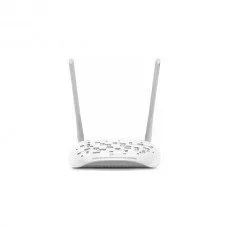
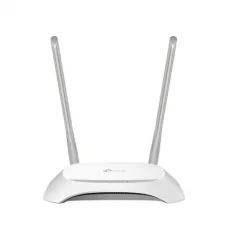
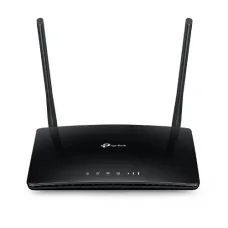
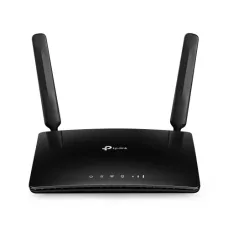
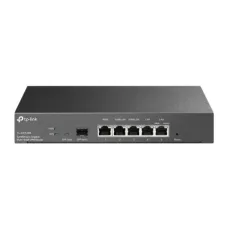
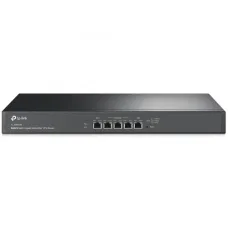
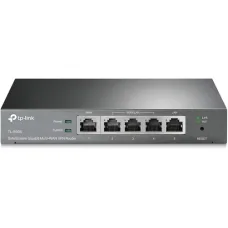
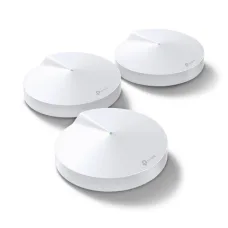
Best TP-Link Routers for Fast and Reliable Internet Connectivity

Showing 46 to 60 of 119 (8 Pages)

TP-Link routers are widely used for home, office, business, and small-network internet connectivity. A suitable TP-Link router can provide wired and wireless network access, internet sharing, Wi-Fi coverage, network security, parental controls, guest networking, and other features depending on the model.

What Is a TP-Link Router?

A TP-Link router is a networking device that connects a local network to the internet or another upstream network. It can manage traffic between different networks while also providing Wi-Fi and Ethernet connectivity on compatible models.

A typical home network can be arranged as:

Internet Connection → TP-Link Router → Wi-Fi Devices and Wired Devices

Computers, smartphones, laptops, smart TVs, printers, CCTV systems, gaming consoles, and other compatible devices can connect to the router according to the capabilities of the selected model.

Why Choose a TP-Link Router?

  • Reliable wireless networking for homes and businesses.
  • Different Wi-Fi standards and performance levels.
  • Multiple Ethernet ports on supported models.
  • Dual-band and tri-band options.
  • Support for modern Wi-Fi technologies on newer models.
  • Guest network functionality on supported products.
  • Parental control features on compatible routers.
  • Security and access-control features.
  • Mesh networking support on compatible products.
  • Different models for basic and advanced networking requirements.

Types of TP-Link Routers

TP-Link offers different router categories for different networking requirements. The exact features vary between product families and individual models.

  • Basic home Wi-Fi routers.
  • Dual-band wireless routers.
  • Tri-band Wi-Fi routers.
  • Wi-Fi 6 routers.
  • Wi-Fi 6E routers on supported models.
  • Wi-Fi 7 routers on supported models.
  • 4G LTE routers.
  • 5G routers.
  • Gaming-oriented routers.
  • Mesh-compatible routers.
  • Business and professional networking routers.

TP-Link Wi-Fi Router

A TP-Link Wi-Fi router combines routing functions with wireless networking. This allows smartphones, laptops, tablets, smart TVs, and other wireless devices to connect to the network without Ethernet cables.

Wireless performance depends on the router's Wi-Fi generation, antenna configuration, channel conditions, client devices, distance, building construction, interference, and network configuration.

TP-Link Dual-Band Router

Dual-band TP-Link routers can provide wireless networking on two frequency bands, commonly 2.4 GHz and 5 GHz.

Band Typical Advantage
2.4 GHz Longer range and better penetration through many obstacles
5 GHz Higher potential performance and generally less range than 2.4 GHz

Actual performance varies according to the environment and connected device.

TP-Link Tri-Band Router

Tri-band routers provide three wireless bands and can be useful for environments with many connected devices or higher wireless traffic requirements.

Tri-band networking can be particularly useful in larger homes, busy offices, gaming environments, and compatible mesh configurations.

TP-Link Wi-Fi 6 Router

Wi-Fi 6, also known as IEEE 802.11ax, introduces technologies designed to improve wireless efficiency, capacity, and performance in environments with many connected devices.

A Wi-Fi 6 TP-Link router can be a suitable upgrade for users with modern smartphones, laptops, smart home devices, gaming equipment, and other compatible Wi-Fi 6 clients.

TP-Link Wi-Fi 7 Router

Wi-Fi 7 is a newer wireless generation designed to provide higher performance and improved efficiency compared with earlier Wi-Fi standards. TP-Link offers Wi-Fi 7 products in selected product families.

To benefit from advanced Wi-Fi 7 capabilities, compatible client devices are also required. The actual performance of any wireless network depends on the capabilities of all connected equipment and the local radio environment.

TP-Link 4G LTE Router

A TP-Link 4G LTE router can provide internet connectivity using a compatible cellular network and SIM card instead of a conventional fixed broadband connection.

These routers can be useful in homes, offices, rural locations, temporary installations, backup internet setups, and areas where fixed broadband is unavailable or unreliable.

TP-Link 5G Router

TP-Link 5G routers use compatible 5G cellular networks to provide high-speed internet connectivity. They can be useful where 5G coverage is available and a compatible SIM and mobile data service are supported.

Actual 5G speed depends on network coverage, carrier configuration, signal strength, congestion, spectrum, location, and the selected data plan.

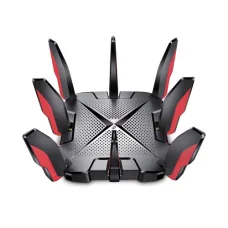
TP-Link Gaming Router

Gaming-oriented TP-Link routers can include features designed to help manage gaming traffic and connected devices. Depending on the model, features may include QoS, traffic prioritization, gaming optimization, multiple high-speed Ethernet ports, and advanced wireless capabilities.

A gaming router cannot guarantee lower internet latency because latency is also affected by the ISP, game server, routing path, distance, congestion, and other factors.

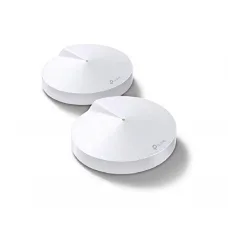
TP-Link Mesh Wi-Fi

Compatible TP-Link routers and Wi-Fi products can support mesh networking, allowing multiple compatible units to work together to provide broader wireless coverage.

A mesh system can be useful in larger homes, multi-story buildings, offices, and locations where a single router cannot provide adequate Wi-Fi coverage.

TP-Link Router Features

The available features depend on the exact model. Common TP-Link router features can include:

  • Dual-band or tri-band Wi-Fi.
  • Gigabit Ethernet ports.
  • High-speed wireless connectivity.
  • Guest Wi-Fi.
  • Parental controls.
  • Quality of Service.
  • VPN-related features on supported models.
  • IPv6 support on compatible models.
  • Mesh networking support on selected products.
  • Mobile application management on supported products.
  • Firmware updates.
  • Security features.

How to Choose the Right TP-Link Router

  • Determine your internet connection type.
  • Check your subscribed internet speed.
  • Consider the size of your home or office.
  • Count the number of connected devices.
  • Choose the appropriate Wi-Fi generation.
  • Decide whether dual-band or tri-band is required.
  • Check Ethernet port speed.
  • Consider mesh support if you need wider coverage.
  • Check parental-control requirements.
  • Consider VPN and advanced networking features.
  • Check whether 4G or 5G connectivity is required.
  • Consider future network requirements.

TP-Link Router for Home

A TP-Link home router can connect smartphones, laptops, desktops, smart TVs, gaming consoles, printers, smart home devices, and other equipment to the internet.

For a small apartment, a basic dual-band router may be sufficient. Larger homes may benefit from a higher-performance router or a compatible mesh Wi-Fi system.

TP-Link Router for Office

Office networks often have more users and devices than home networks. A suitable TP-Link router can provide internet connectivity and network management for computers, printers, wireless access points, IP phones, CCTV systems, and other devices.

For larger organizations, dedicated business networking equipment may be more appropriate than a consumer router.

TP-Link Router for Small Business

Small businesses can benefit from routers that provide advanced network management, guest Wi-Fi, security controls, VPN features, VLAN-related capabilities, or multi-WAN functionality where supported.

When selecting a business router, consider the number of users, bandwidth requirements, security policies, remote-access requirements, and expected future growth.

TP-Link Router for Gaming

For gaming, a wired Ethernet connection is often preferable when available. A suitable TP-Link gaming or high-performance router can help manage traffic and support multiple high-speed connections.

For wireless gaming, choose a router and client device that support an appropriate Wi-Fi generation and ensure that the gaming device has a strong, stable wireless signal.

TP-Link Router for CCTV

A router can provide network connectivity for IP CCTV systems, allowing compatible cameras and recording devices to communicate across the local network.

For larger CCTV deployments, it is important to consider network bandwidth, PoE switches, recording requirements, VLANs, and secure remote-access configuration.

TP-Link Router for Fiber Internet

Fiber internet services commonly use an optical network terminal or similar provider equipment. Depending on the ISP and service architecture, a TP-Link router can connect to the provider's Ethernet handoff or compatible upstream equipment.

Before purchasing, check whether the ISP requires PPPoE, VLAN tagging, DHCP, a specific WAN configuration, or another authentication method.

TP-Link Router for Broadband

TP-Link routers can support various broadband configurations depending on the model. The WAN connection may use Ethernet, DSL, cellular connectivity, or another supported interface.

Always verify compatibility with your internet service provider before selecting a router.

TP-Link Router Setup

Setting up a TP-Link router generally involves connecting the WAN or internet port to the upstream internet device, powering the router, connecting a computer or mobile device, and completing the configuration through the supported management interface.

  • Connect the internet source to the router's WAN or Internet port.
  • Power on the router.
  • Connect a computer or smartphone to the router.
  • Open the supported TP-Link setup or management interface.
  • Configure the internet connection type.
  • Create a secure Wi-Fi name and password.
  • Configure additional security settings.
  • Update firmware when appropriate.
  • Test internet connectivity.

TP-Link Router Login

TP-Link router login procedures vary by model and firmware. The management interface may be available through a local web address or a supported mobile application.

Use the login information and management address provided for your specific model rather than assuming that every TP-Link router uses the same credentials.

TP-Link Router Default IP Address

Many TP-Link routers have traditionally used a private local network address for administration, but the exact address and login method can vary by product and configuration.

If the default address does not work, check the product label, user manual, router documentation, or the device's current network information.

How to Change TP-Link Wi-Fi Password

After logging into the router's supported management interface, locate the wireless settings and change the Wi-Fi password. Choose a strong password that is difficult for unauthorized users to guess.

After changing the password, previously connected wireless devices may need to reconnect using the new credentials.

How to Change TP-Link Wi-Fi Name

The wireless network name, commonly called SSID, can generally be changed from the router's wireless configuration settings.

Use a unique network name that does not reveal unnecessary personal information.

TP-Link Router Security

Router security is important because the router is a central component of the local network.

  • Use a strong administrator password.
  • Use modern Wi-Fi security where supported.
  • Keep router firmware updated.
  • Disable unnecessary remote administration.
  • Use a separate guest network for visitors when appropriate.
  • Review connected devices regularly.
  • Use appropriate firewall and access-control settings.

TP-Link Guest Wi-Fi

Guest Wi-Fi allows visitors to access the internet without necessarily giving them access to the main local network.

This can be useful for homes, offices, shops, hotels, and other environments where guests require internet access but should remain separated from internal devices.

TP-Link Parental Controls

Selected TP-Link routers provide parental-control features that can help manage internet access for specific devices or users.

Depending on the model, controls may include schedules, website restrictions, content filtering, or other access-management functions.

TP-Link Router QoS

Quality of Service can help prioritize certain traffic or devices on compatible routers.

QoS may be useful when several users share the same internet connection for activities such as video conferencing, gaming, streaming, browsing, and large downloads.

TP-Link Router VPN Features

Some TP-Link routers provide VPN-related functionality. The exact supported VPN protocols and features vary by model and firmware.

Before purchasing a router for VPN use, check the exact manufacturer's specifications and ensure that the supported VPN configuration matches your requirements.

TP-Link Router Firmware Update

Firmware updates can provide bug fixes, security improvements, performance changes, and additional features depending on the product.

Before updating firmware, confirm the exact hardware version and use the firmware intended for that specific model and region where applicable.

TP-Link Router Troubleshooting

If a TP-Link router is not providing internet access, first determine whether the problem is with the internet service, upstream equipment, router configuration, wireless connection, or client device.

  • Check the router power connection.
  • Check the WAN or Internet cable.
  • Check the ISP connection.
  • Restart the relevant network equipment.
  • Check WAN configuration.
  • Check Wi-Fi settings.
  • Test another device.
  • Check DNS and IP configuration.
  • Review router status information.
  • Check for firmware updates.

TP-Link Router Wi-Fi Slow

Slow Wi-Fi can result from distance, walls, interference, channel congestion, outdated client devices, poor router placement, network congestion, or insufficient router capacity.

Place the router in a central and elevated location where practical. Avoid enclosing it inside cabinets or placing it near sources of significant wireless interference.

TP-Link Router Internet Disconnecting

Frequent disconnections can be caused by ISP problems, unstable WAN connectivity, power issues, firmware problems, overheating, interference, or incorrect configuration.

Check whether the disconnection affects every device or only one wireless client. This can help identify whether the problem is with the router's internet connection or an individual device.

TP-Link Router Range

There is no single Wi-Fi range that applies to every TP-Link router. Coverage depends on the router model, antennas, transmission conditions, building materials, interference, device location, and regulatory limits.

For large homes or offices, a compatible mesh system or additional access points may provide better coverage than relying on a single router.

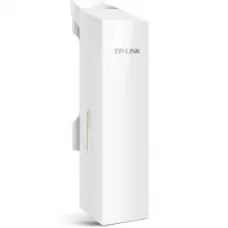
TP-Link Router vs Access Point

Feature Router Access Point
Internet routing Yes Normally no
NAT Usually yes No
DHCP server Usually available Usually depends on the network
Wi-Fi Often available Yes
Connects separate networks Yes Normally bridges wireless and wired LAN

TP-Link Router vs Modem

A modem or ONT connects to the service provider's network according to the technology used by the ISP. A router manages the local network and typically shares the internet connection among multiple devices.

Some ISP-provided devices combine modem or ONT functionality with routing and Wi-Fi features.

TP-Link Router vs Mesh Wi-Fi

A conventional router normally provides Wi-Fi from one primary location. A mesh system uses multiple compatible nodes to provide broader coverage across a larger area.

For a small apartment, one good router may be enough. For a multi-story home or larger property, mesh networking can provide more consistent coverage.

TP-Link Router Ethernet Ports

Ethernet ports allow wired devices to connect directly to the router. Depending on the model, ports may support Fast Ethernet, Gigabit Ethernet, Multi-Gigabit Ethernet, or higher speeds.

If your internet connection is faster than 1 Gbps, check whether the router's WAN and LAN ports support the required speed.

TP-Link Router for High-Speed Internet

When using a high-speed broadband connection, the router should have sufficient WAN and LAN performance to avoid becoming a bottleneck.

For example, a multi-gigabit internet service may require a router with a multi-gigabit WAN port and appropriate LAN or wireless capabilities.

TP-Link Router for Multiple Devices

Modern homes can have dozens of connected devices, including smartphones, laptops, televisions, cameras, smart appliances, printers, and IoT devices.

When many devices are connected simultaneously, router capacity, wireless technology, processor performance, memory, channel utilization, and network configuration can affect the overall experience.

TP-Link Router for Smart Home

Smart home devices often require continuous network connectivity. A suitable TP-Link router can provide wireless or wired connectivity for smart TVs, cameras, smart speakers, appliances, sensors, and other compatible equipment.

For security, consider placing less-trusted IoT devices on an appropriate guest or isolated network when the router supports suitable segmentation features.

TP-Link Router for Bangladesh

TP-Link routers can be used in homes, offices, shops, educational institutions, and businesses throughout Bangladesh. When choosing a router, consider your ISP, broadband speed, coverage requirements, number of users, number of connected devices, and available budget.

For cellular routers, verify the supported network bands and compatibility with your mobile operator before purchasing.

TP-Link Router Price in Bangladesh

The price of a TP-Link router in Bangladesh depends on the model, Wi-Fi generation, wireless speed class, number of bands, Ethernet port speed, mesh capabilities, security features, and other specifications.

Entry-level routers are designed for basic connectivity, while higher-end Wi-Fi 6, Wi-Fi 7, gaming, mesh, 4G, 5G, and business-oriented models can have significantly different prices.

Prices and stock can change without prior notice because of supplier availability, exchange rates, market conditions, product revisions, and other factors. Customers should check the current product listing before ordering.

Buy TP-Link Router in Bangladesh

If you are looking to buy a TP-Link router in Bangladesh, first identify your internet connection type and required network performance. Then compare compatible TP-Link models based on Wi-Fi generation, coverage, Ethernet speed, number of devices, security features, and future expansion requirements.

Unix Network provides computer, networking, CCTV, and IT products and services in Jashore, Bangladesh. Customers can explore available TP-Link routers and other networking products through the Unix Network eCommerce website.

Before placing an order, customers should confirm the current price, stock status, warranty, exact model number, hardware version, and specifications.

Frequently Asked Questions About TP-Link Routers

What is a TP-Link router used for?

A TP-Link router is used to connect a local network to the internet or another network and provide wired and wireless connectivity to compatible devices.

Is TP-Link a good router brand?

TP-Link offers a broad range of consumer and business networking products. The suitability of a router depends on the specific model and whether its features match your internet connection, coverage, performance, and networking requirements.

Which TP-Link router is best?

There is no single best TP-Link router for every user. The appropriate model depends on internet speed, property size, number of connected devices, Wi-Fi requirements, Ethernet speed, budget, and desired features.

Is TP-Link Wi-Fi 6 better than Wi-Fi 5?

Wi-Fi 6 introduces improvements in wireless efficiency and capacity compared with Wi-Fi 5. The practical benefit depends on compatible client devices, network conditions, and the number of devices using the network.

Does a TP-Link router support 5G?

Some TP-Link routers support 5G cellular connectivity, while conventional Wi-Fi routers do not. Check the exact model before purchasing.

Can I use a TP-Link router with a fiber internet connection?

Yes, a compatible TP-Link router can often be used with fiber internet when the ISP provides a compatible Ethernet connection through an ONT or other upstream device. ISP-specific configuration requirements should be checked before installation.

Can I use a TP-Link router as an access point?

Some TP-Link router models support access point operation. The availability and configuration of this mode depend on the exact model and firmware.

Can I use a TP-Link router with another brand's modem?

In many network configurations, a TP-Link router can work with a compatible modem or ONT from another manufacturer. The connection and configuration requirements depend on the ISP and upstream device.

How many devices can connect to a TP-Link router?

The theoretical and practical number of connected devices depends on the router model, wireless capacity, client behavior, traffic levels, and network configuration.

Does a TP-Link router increase internet speed?

A router cannot increase the internet bandwidth provided by your ISP. However, replacing an outdated router with suitable higher-performance equipment can remove a local networking bottleneck and allow compatible devices to use more of the available internet connection.

How can I improve TP-Link Wi-Fi coverage?

  • Place the router in a central location.
  • Keep the router elevated and unobstructed.
  • Avoid unnecessary sources of wireless interference.
  • Use the appropriate Wi-Fi band for the location.
  • Update compatible firmware.
  • Use a compatible mesh system or additional access point for larger areas.

How do I secure a TP-Link router?

Use a strong administrator password, secure Wi-Fi encryption, updated firmware, appropriate firewall settings, and a guest network where necessary. Disable unnecessary remote administration and regularly review connected devices.

Final Thoughts on TP-Link Routers

TP-Link routers provide networking options for homes, offices, shops, gaming setups, smart homes, and business environments. With models ranging from basic wireless routers to advanced Wi-Fi 6, Wi-Fi 7, mesh, gaming, 4G, 5G, and business-oriented solutions, users can choose equipment based on their specific networking requirements.

The best TP-Link router is not necessarily the most expensive model. The right choice depends on your internet speed, property size, number of connected devices, wireless coverage requirements, Ethernet performance, security needs, and future expansion plans.

Before purchasing a TP-Link router, carefully check the exact model specifications, WAN and LAN port speeds, Wi-Fi standard, frequency bands, coverage expectations, mesh compatibility, cellular support where applicable, warranty, and current availability.

Why Buy TP-Link Router from Unix Network?

Unix Network is a computer, networking, CCTV, and IT solutions provider in Jashore, Bangladesh. The business offers networking products for home users, offices, shops, professionals, and organizations.

Customers looking for a TP-Link router can check the Unix Network eCommerce website for available models, current pricing, specifications, warranty information, and related networking products. Product prices and stock may change without prior notice, so customers should confirm the latest information before ordering.